

How do I export my data from HubSpot? A practical guide before you leave
Exporting your HubSpot data sounds simple. Click export, download a spreadsheet and move it into the next CRM.
Quick answer
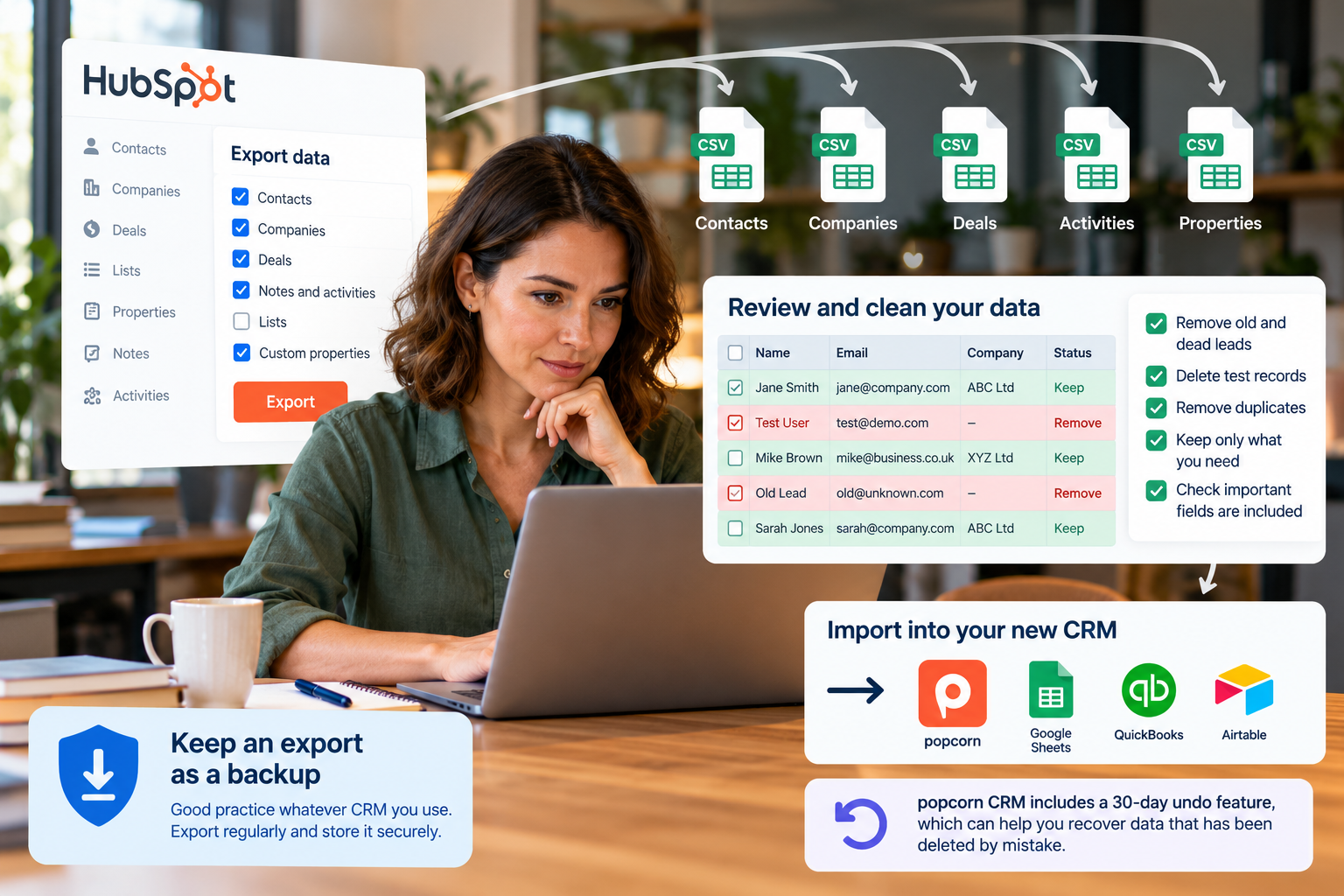
To export data from HubSpot safely, first decide what you actually need, then export contacts, companies and deals separately where relevant. Check the export settings carefully because the files may not contain every field or relationship you expected. Review and clean each spreadsheet before importing anything into your next CRM, and always keep a secure export as a backup.
- Decide what data is genuinely worth taking with you.
- Check HubSpot export settings before relying on the files.
- Export deals separately as a commercial safety net.
- Expect several spreadsheets rather than one perfect file.
- Review every spreadsheet before importing anything.
- Only clean the data you are actually going to use.
- Test a small import before moving the full database.
- Keep a secure export as a backup, whatever CRM you use.
- popcorn CRM includes a 30-day undo feature for accidentally deleted data.
Overview
Exporting is more than downloading a spreadsheet
In practice, it is usually more involved than that.
You may need several exports, and the files may not contain every piece of information you expected.
The most important thing is not just getting the data out. It is deciding what is actually worth taking with you.
The safest process is:
Export → Backup → Check → Decide → Clean → Test → Import
Here is how to approach it.
01 · Decide
1. Decide what you actually need before exporting
Before downloading thousands of records, decide what information genuinely needs to exist in the next CRM.
Ask: "Will somebody actually use this information?"
You probably need things like:
- active prospects
- current customers
- open deals
- useful notes
- contact information
- important company information
- relevant sales history
- custom fields your team actually uses
You may not need:
- dead leads from years ago
- abandoned opportunities
- old test records
- obsolete properties
- historic lists nobody uses
- old process fields that no longer make sense
Moving everything simply because it exists can create a messy new CRM from day one.
02 · Export settings
2. Check your HubSpot export settings carefully
Do not assume that clicking Export automatically gives you every piece of information you will need.
Depending on what you export and the options selected, the resulting files may not contain every property, association or piece of historic information you expected.
Before relying on the export, check:
- which properties are included
- whether custom properties are included
- deal information
- company information
- owners
- pipeline and deal-stage information
- useful notes or historic activity
- associations between contacts, companies and deals
Then open the spreadsheets and physically inspect the columns. Check several records you know well.
Ask: "If HubSpot disappeared tomorrow, does this export contain the information I would need to continue working?"
If not, go back and check the export settings before moving on.
Do not discover after cancellation that an important field was never included.
03 · Record types
3. Export contacts, companies and deals separately
Do not expect one giant spreadsheet to contain your entire CRM in a neat transferable structure.
In particular, export your deals separately.
Your deal export is commercially important because it gives you a clear working list of the opportunities the business is actively managing.
Check that it includes the information you need to understand:
- which opportunities are still active
- deal name
- associated contact
- associated company
- pipeline stage
- owner
- value
- expected close date
- useful deal information
If you use company records meaningfully, export those separately too.
This makes it much easier to understand what you have before you start importing into the next system.
04 · Multiple files
4. Expect several spreadsheets
Coming out of HubSpot may mean working with multiple files. That is normal.
You may have separate information relating to:
- contacts
- companies
- deals
- properties
- activities or notes
- lists
- other record types
Do not rush to merge everything together.
First understand what each file contains and what role it will play in the new CRM.
05 · Review
5. Review every spreadsheet before you import it
This is one of the most important parts of the migration.
Do not download your HubSpot database and immediately upload it into your next CRM.
That simply moves your old clutter into a shiny new system.
Open the spreadsheets first.
Look through the rows and columns and repeatedly ask: "Do I actually need this?"
Look for:
- dead leads
- old test contacts
- duplicates
- obsolete deal stages
- abandoned opportunities
- unused custom fields
- columns containing no useful information
- old lists or classifications nobody understands
- data created around processes you no longer use
Then remove the obvious rubbish.
Your new CRM is an opportunity to start with better data, not simply recreate the old system.
06 · Cleaning
6. Only clean the data you are actually going to import
Do not turn the migration into a giant data-cleaning project.
There is very little value spending hours fixing thousands of old records if you have already decided they are not coming with you.
Start by deciding what you need. Then clean that subset.
A useful priority order is:
-
Open deals
-
Active leads
-
Follow-ups due soon
-
Current customers
-
Useful historic contacts
-
Everything else only if there is a reason to keep it
The biggest risk is not leaving an old contact behind.
It is leaving behind the person who is expecting a proposal or follow-up this week.
07 · Validate
7. Check that the information you need really came out
Once you have exported and started reviewing the data, perform another validation.
Pick several contacts and deals you know well in HubSpot and compare them with the export.
Check:
- contact details
- important custom fields
- associated company
- associated deal
- pipeline stage
- owner
- important notes or context
- next action where relevant
If something important is missing, do not assume it cannot be exported.
Go back to HubSpot and check the relevant record type, property selection or export settings before proceeding.
The export is only useful if it contains the information your team needs to keep working.
08 · Keep it simple
8. Do not over-engineer the spreadsheets
Once the rubbish is removed and the important information is present, stop.
You do not need to rebuild your new CRM inside Excel.
Most good modern CRMs provide an import mapping process. That normally allows you to match:
HubSpot column → New CRM field
during the import.
Clean the file. Understand the file. Make sure the important information is there.
Then let the new CRM's importer do its job.
09 · Test
9. Test a small import before moving everything
Do not make the full database your test.
Take a small sample and import that first. Then check:
- names
- email addresses
- companies
- custom fields
- deals
- pipeline information
- tags
- dates
- duplicates
If something has mapped incorrectly, it is much easier to fix a small test than thousands of records.
Only move the wider database when the test looks right.
10 · Backup
10. Keep an export as a backup, whatever CRM you use
Exporting your CRM data is not something you should only think about when you are leaving a system.
It is good practice to keep a recent backup of your important CRM data, whatever platform you use.
That gives you another safety net if:
- data is deleted by mistake
- a bulk update goes wrong
- an import overwrites information
- a user changes something unexpectedly
- you need to check historic information
- you decide to move systems later
Store the export securely and make sure it is recent enough to be useful.
Your CRM provider should have its own safeguards, but having your own export gives you another layer of protection.
Your own export
Your own export gives you an external backup.
popcorn's 30-day undo
popcorn CRM also includes a 30-day undo feature, which can help recover data that has been deleted by mistake.
The 30-day undo feature gives you an additional in-system recovery safety net.
Rebuilding
What might not transfer cleanly?
Not everything in HubSpot will necessarily transfer neatly into another CRM.
Things that may need to be rebuilt or handled separately can include:
- workflows
- automations
- reports
- dashboards
- forms
- landing pages
- complex associations
- some historic activity
This is why it is important to decide what your next CRM actually needs before trying to recreate everything.
You may discover that some of the old setup is no longer useful.
That is not a migration failure. It can be an opportunity to simplify.
Less is more
Your new CRM does not need everything from your old CRM
When businesses migrate systems, there is a natural instinct to preserve everything.
But more data is not automatically better data.
If you import years of irrelevant contacts, abandoned opportunities, unused fields and old processes, you can make the new CRM messy before anybody has even started using it.
Instead ask: "What information will help us sell, follow up and look after customers from now on?"
Bring that with you.
Keep anything else securely archived if there is a genuine legal, contractual or business reason to retain it.
But it does not necessarily need to live inside the new CRM.
Good practice
Exporting is good data practice, not just a migration task
Whatever CRM you use, keep a backup of the information that matters.
Then, if you ever need to migrate, recover or check historic data, you are not starting from zero.
The practical sequence is:
Export → Backup → Check → Decide → Clean → Test → Import
Not:
Export → Import everything.
That small change in approach can save a lot of wasted time and give your new CRM a much cleaner start.
Summary
Quick checklist: exporting data from HubSpot
Before importing anything into your next CRM, check:
- Have you decided what data you actually need?
- Have you checked the HubSpot export settings?
- Are custom properties included where needed?
- Have you exported your deals separately?
- Have you checked company data separately if relevant?
- Have you reviewed each spreadsheet?
- Have you removed records you do not need?
- Have you checked important sample records against HubSpot?
- Have you confirmed that key fields and associations are present?
- Have you avoided wasting time cleaning data you will not import?
- Have you tested a small import?
- Have you kept a secure copy of the original export as a backup?
If you can answer yes to those, you are in a much stronger position to move safely.
Frequently asked questions
How do I export my data from HubSpot before leaving?
Start by deciding which records you genuinely need, then export the relevant contacts, companies and deals. Check the export settings carefully and inspect the resulting spreadsheets to make sure important properties and relationships are present. Review and clean the data before importing it into your next CRM, and keep the original export as a secure backup.
Should I export HubSpot deals separately?
Yes. Exporting deals separately gives you a clear working list of your active opportunities and helps protect commercially important information during the move. Check deal stage, owner, value, expected close date and associated contact or company information before relying on the export.
Why is information missing from my HubSpot export?
Different export types and settings may include different properties and record information. If something important appears to be missing, go back to HubSpot and check the record type, selected properties and export options. Compare several known records with the spreadsheet before assuming the export is complete.
Should I clean my HubSpot data before importing it into another CRM?
Yes, but only clean the data you actually plan to import. Remove obvious dead leads, test records, obsolete fields, abandoned opportunities and other information you no longer need. There is little value spending hours cleaning records that will not be used in the new CRM.
Should I keep a backup of my CRM data?
Yes. Keeping a recent export of your important CRM data is good practice whatever system you use. It provides an additional safety net if data is deleted, overwritten or changed unexpectedly and can make future migration or recovery easier.
Does popcorn CRM protect accidentally deleted data?
popcorn CRM includes a 30-day undo feature, which can help recover data that has been deleted by mistake. It is still sensible to keep your own secure exports of important CRM data as an additional backup.
See popcorn in 90 seconds
The Small Business Alternative to HubSpot
See how popcorn keeps your customer journey joined up, without the complexity or the HubSpot price tag.
No contracts · No setup costs · UK-based support