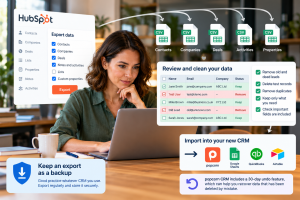

How do I migrate my CRM data from HubSpot? 10 practical tips
Moving your CRM data from HubSpot does not have to mean rebuilding everything from scratch.
Quick answer
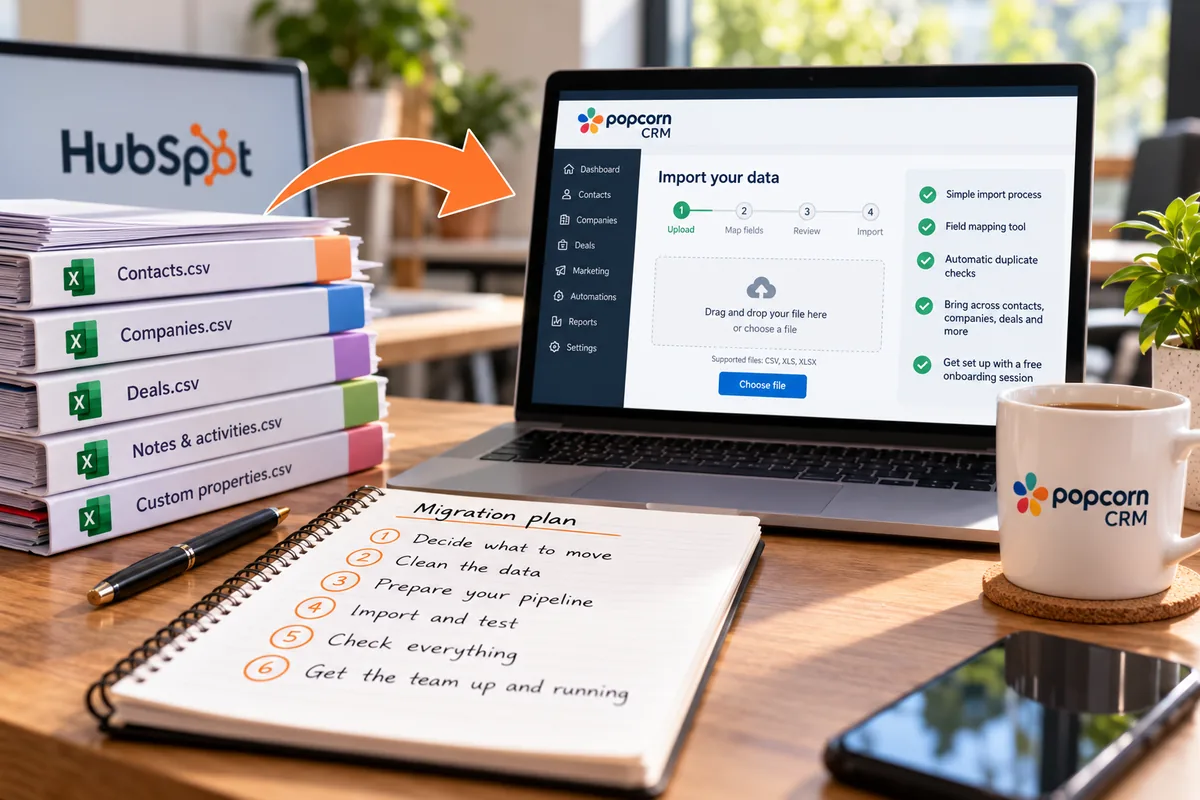
To migrate CRM data from HubSpot successfully, export the information you actually need, clean the spreadsheets, check how the new CRM identifies contacts, use its import and field-mapping tools, rebuild your pipeline before importing deals and test a small sample first. The goal is to move useful data, not recreate HubSpot's complexity.
- Move only the data your team genuinely needs.
- Clean HubSpot exports before importing them.
- Use the new CRM's mapping tools instead of over-engineering spreadsheets.
- Check the destination CRM's unique identifier before importing.
- Design your new pipeline before moving deals.
- Import HubSpot stages as tags or reference data where useful.
- Let the destination CRM handle obvious duplicates where possible.
- Test a small sample before importing everything.
- Check real records after the import.
- Use the migration as an opportunity to simplify.
Overview
How do I migrate my CRM data from HubSpot?
The biggest mistake is assuming that every field, pipeline stage, workflow and historic record needs to come with you.
A CRM migration is a chance to simplify.
The goal is to bring across the information your team genuinely needs, get the new CRM working properly and avoid recreating unnecessary complexity.
Here are 10 practical tips.
01 · Scope
1. Decide what actually needs to move
Do not migrate everything by default. Start by asking what your team genuinely needs in the new CRM.
That will usually include things like:
- active contacts
- current customers
- open opportunities
- recent notes
- useful historic activity
- important custom fields
- live follow-ups
- key company information
You may not need years of dead leads, old lists, unused properties or historic information nobody looks at anymore.
Action: Before you start, split the data into:
Keep asking: "Do I actually need this in the new CRM?"
02 · Cleaning
2. Clean the spreadsheets before importing anything
HubSpot can export a lot of data. Depending on what you export, you may end up with one large spreadsheet or several separate files.
Do not simply download them and immediately upload them into the new CRM. Review them first.
Remove:
- dead leads
- old or irrelevant records
- unused columns
- obsolete custom properties
- outdated pipeline stages
- obvious errors
- information your team no longer uses
A cleaner import makes the whole migration easier.
Action: Open each spreadsheet before you import it.
Delete anything you know you do not need and make sure the important information is clear and usable.
For the detailed export process, use the separate guide: How do I export my data from HubSpot? A practical guide before you leave
That article should cover the export mechanics, including why HubSpot may give you multiple spreadsheets for different record types.
03 · Structure
3. Understand which files belong together
Your HubSpot information may be spread across contacts, companies, deals and other record types.
That means you should understand which records belong together before you start importing. For example:
- a contact may belong to a company
- a deal may belong to a contact
- several contacts may belong to the same company
- a contact may have historic notes or activity linked to it
You do not need to become a database expert.
You just need to know which pieces of information matter together so the new CRM can be set up sensibly.
Action: Before importing, identify the main groups of information you want to preserve:
Then decide which of those the new CRM actually needs.
04 · Field mapping
4. Don't overthink field mapping before you start
You do not need to redesign every spreadsheet before importing it.
Many modern CRMs give you a field-mapping tool during the import process. That lets you choose where each column from your HubSpot export should go in the new CRM.
For example, you may map:
| HubSpot export column | Maps to in the new CRM |
|---|---|
| First Name | First Name |
| Last Name | Last Name |
| Company | Company |
| Phone | Phone |
| Deal Stage | a tag or pipeline field |
| HubSpot properties | relevant custom fields |
The important thing is to understand what the data means, not to make the spreadsheet perfect before you begin.
Action: Clean out information you definitely do not need, then use the new CRM's mapping tool to decide where the remaining fields should go.
If there are fields you are unsure about, leave them out rather than automatically recreating everything.
05 · Identifiers
5. Check what the new CRM uses as its unique identifier
Do not assume the HubSpot record ID needs to move with you.
The CRM you are moving to may use a completely different way of identifying records.
For example, popcorn CRM uses the email address as the main identifier, supported by first name and last name. That means the HubSpot unique ID is not needed for the import into popcorn.
Other CRMs may work differently, so check this before importing.
Action: Ask your new CRM provider: "What does your system use to identify a unique contact?"
Once you know that, make sure the relevant field is clean and complete in your import file.
06 · Pipeline
6. Review your pipeline before you import deals
Do not automatically rebuild the HubSpot pipeline exactly as it was.
HubSpot pipelines can be quite restrictive depending on how you have used them.
If the CRM you are moving to allows you to build more customised pipelines, use the move as an opportunity to design something that better reflects how your business actually sells.
Think about:
- the stages you really need
- what each stage means
- when a deal should move forward
- whether you need more than one pipeline
- what your team actually finds useful
Then build the new pipeline before importing your deals.
A practical way to handle the old HubSpot stage is to import it as a tag or reference field. You can then use that information to place each contact or deal into the most appropriate stage in the new CRM.
Action: Plan the new pipeline first.
Then import the old HubSpot stage as a tag or reference, so you can use it to organise the deals properly once they arrive.
07 · Live work
7. Protect your live deals, follow-ups and notes
The most important part of the migration is not the size of the database. It is the work that is live right now.
That includes:
- open opportunities
- new enquiries
- follow-ups due soon
- important notes
- proposals in progress
- active customer conversations
- next actions
If those are missed, the business impact can be much bigger than losing an old historic record.
Action: Create a separate list of:
- every active deal
- every follow-up due in the next 30 days
- every new enquiry still being worked
- every important next action
Check those records manually after the import.
08 · Duplicates
8. Don't spend hours worrying about duplicates
You should remove obvious duplicates if you spot them, but do not spend days trying to make the file perfect.
Many good CRMs will help identify obvious duplicates automatically during or after the import. If a few records are left over, they can normally be merged manually afterwards.
The bigger risk is spending too much time cleaning data that the new CRM could have handled for you.
Action: Remove obvious duplicate rows, then check what duplicate handling the new CRM provides.
Focus your time on the information that matters commercially.
09 · Testing
9. Test a small sample before importing everything
Do not start with the entire database. Take a representative sample first.
That might include:
- a customer
- a live prospect
- a contact linked to a company
- a deal
- a record with custom information
- a contact with useful notes
Import that small sample and see what happens.
Action: Import 20 to 50 representative records first.
Then check:
- did the fields map correctly?
- are names and email addresses right?
- are companies linked properly?
- did useful tags appear?
- is the pipeline information usable?
- is anything important missing?
Fix problems before importing the full database.
10 · Checking
10. Check the data after the import
A successful import message does not necessarily mean the migration is finished.
Open real records and check that the information actually makes sense to the people who will use it.
Look at:
- contacts
- companies
- open deals
- notes
- tags
- custom fields
- follow-ups
- pipeline position
Ask your team to test normal day-to-day tasks in the new CRM.
Action: Choose a handful of real customers and prospects and compare their old HubSpot record with the new CRM.
Make sure the information your team needs is easy to find and usable.
Keep it simple
Don't recreate HubSpot inside your new CRM
If you are leaving HubSpot because it has become complicated, expensive or difficult for the team to use, do not move all that complexity into the next system.
Step back and ask: "What do we actually need this CRM to do for us?" Then design around that.
You might only need:
- a simple sales pipeline
- clear follow-ups
- contact history
- marketing activity
- website tracking
- a few useful custom fields
- straightforward reporting
You may not need dozens of fields, workflows, lists and pipeline stages.
A CRM migration is a chance to simplify.
With popcorn CRM, paid customers get a free onboarding session to help them get up and running quickly.
That gives you a chance to review what you really need, build the right pipeline and bring across the useful information without recreating unnecessary complexity.
Summary
Quick checklist: migrating CRM data from HubSpot
Check:
- What genuinely needs to move?
- Have you cleaned the export files?
- Which records belong together?
- Does the new CRM provide a field-mapping tool?
- What does the new CRM use as its unique identifier?
- Have you designed the new pipeline first?
- Have you protected live deals and follow-ups?
- What duplicate handling does the new CRM provide?
- Have you tested a small import?
- Have you checked real records after the migration?
Frequently asked questions
Do I need to import every field from HubSpot into my new CRM?
No. Only bring across the fields your team genuinely needs. A migration is a good opportunity to remove unused properties, outdated information and complexity that has built up over time. If the destination CRM provides a field-mapping tool, use that to decide where the useful HubSpot data should go.
Do I need the HubSpot record ID when I migrate contacts?
Not necessarily. Check what the destination CRM uses as its unique identifier. For example, popcorn CRM uses email address as the main identifier, supported by first name and last name, so the HubSpot record ID is not required. Other CRM systems may work differently, so confirm this before importing.
Should I recreate my HubSpot pipeline exactly?
Usually not. Use the migration as an opportunity to review how your sales process actually works. If the new CRM allows more customised pipelines, design the new stages first. You can import the old HubSpot pipeline position as a tag or reference field and use it to place deals into the appropriate new stage.
Will my new CRM remove duplicate contacts automatically?
Many good CRMs can identify obvious duplicates during or after an import, but the exact behaviour depends on the system. Remove obvious duplicate rows before importing, check the destination CRM's duplicate-handling rules and manually merge any remaining records afterwards if necessary.
Should I import all my HubSpot data at once?
No. Test a small sample first. Import a representative set of around 20 to 50 records and check the field mapping, company links, tags, pipeline information and important details. Fix any problems before importing the rest of the database.
Can popcorn help me move from HubSpot?
Paid popcorn CRM customers receive a free onboarding session. This can help you review what you actually need, set up the right pipeline and get the CRM working quickly without simply recreating unnecessary HubSpot complexity.
See popcorn in 90 seconds
The Small Business Alternative to HubSpot
See how popcorn keeps your customer journey joined up, without the complexity or the HubSpot price tag.
No contracts · No setup costs · UK-based support