
What happens when you cancel HubSpot? 7 things to do before you leave
Cancelling HubSpot is not just about stopping a subscription.
Quick answer
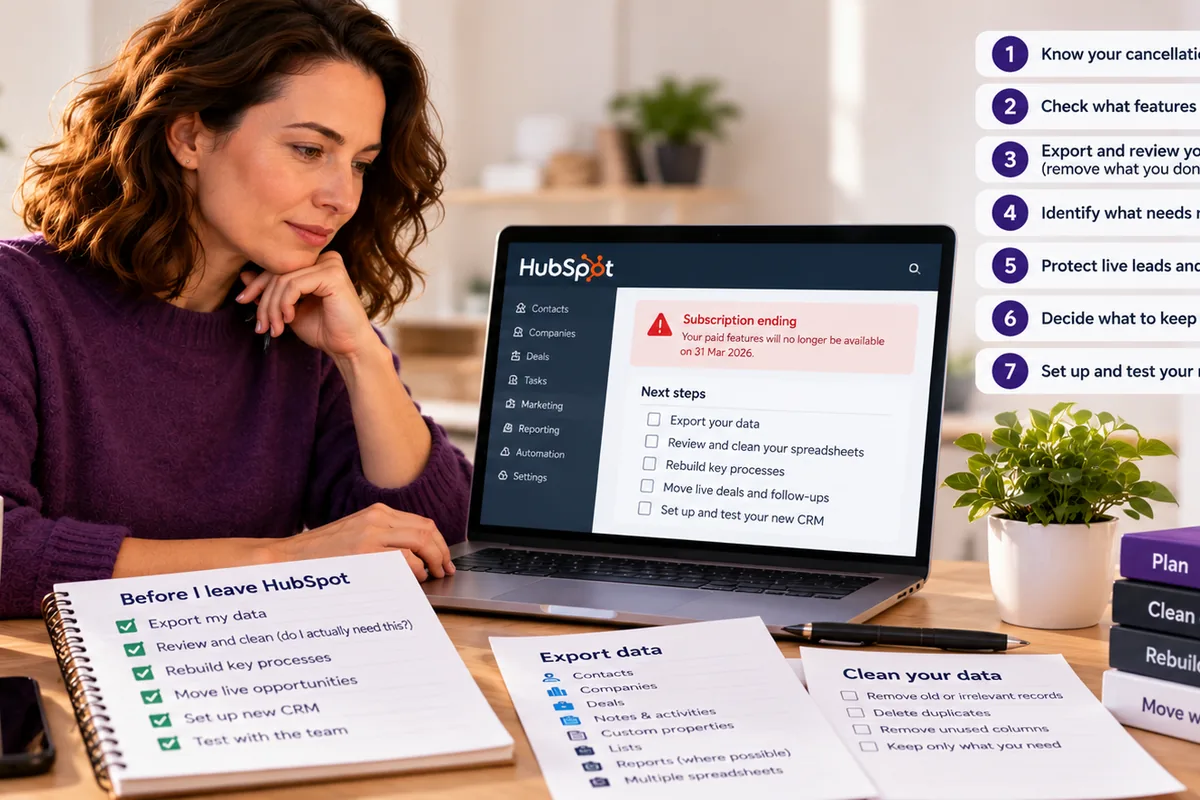
When your paid HubSpot subscription ends, some paid features, limits and tools can change or stop working. Before that happens, review what you use, protect live deals and follow-ups, export and clean the data you actually need, rebuild essential processes elsewhere and test your replacement CRM while HubSpot is still available.
- Know exactly when paid access ends.
- Review which HubSpot features will stop or become limited.
- Export only the data you actually need.
- Clean spreadsheets before importing them into a new CRM.
- Protect live deals, follow-ups and active customer conversations.
- Rebuild essential workflows and reports before the switch.
- Test the replacement CRM while HubSpot is still available.
Overview
What happens when you cancel HubSpot?
When your paid HubSpot subscription ends, some features, limits and tools can change or stop working. That means the safest approach is to plan the move before the cancellation date arrives.
The key is to know what will change, what you need to keep and what should already be working elsewhere before your paid access ends.
Here are seven things to do before you leave.
01 · Timing
1. Know exactly when your cancellation takes effect
Cancelling HubSpot normally does not mean everything stops immediately.
Your paid subscription usually continues until the end of the current commitment term. When that date arrives, the account can move onto HubSpot's free tools.
That means there may be a gap between the day you cancel and the day the paid features actually disappear.
Action: Write down:
- your cancellation date
- the date the paid subscription actually ends
- any separate HubSpot products or add-ons with different dates
- what access you expect to retain afterwards
Treat the end date as a deadline for your migration plan, not the date you start it.
02 · Features
2. Review which paid features will stop working
This is one of the most important checks.
When your paid HubSpot subscription ends or is downgraded, some paid features can stop working or become unavailable.
Depending on what you use, that may affect things like:
- workflows
- sequences
- custom reports
- advanced automation
- teams and permissions
- scheduling tools
- forms
- landing pages
- reporting
- paid sales or marketing functionality
The exact impact depends on the HubSpot products and subscription level you have.
Action: Go through the features your team uses every week and mark each one:
That gives you a much clearer picture of what needs attention before the paid subscription ends.
03 · Your data
3. Make a list of the data and content you need to keep
Do not assume that everything inside HubSpot needs to come with you.
HubSpot can export a lot of information, and that can create a very large spreadsheet or several separate spreadsheets depending on what you are exporting.
Before importing anything into your new CRM, review the files carefully. Ask yourself: Do I actually need this?
Old contacts, dead opportunities, outdated properties, duplicated information and historic data you no longer use can make the migration more complicated than it needs to be.
Moving to a new CRM is a good opportunity to clean things up.
You may want to keep
- active contacts
- current customers
- open opportunities
- recent notes and activity
- important custom fields
- useful historic records
You may not need
- old or dead leads
- duplicated contacts
- unused custom properties
- obsolete pipeline stages
- outdated lists
- historic information nobody uses anymore
Action: Before importing anything into your new CRM:
-
Export the data you need from HubSpot
-
Open each spreadsheet
-
Remove irrelevant or outdated information
-
Check for duplicate records
-
Remove columns you do not need
-
Make sure important fields are clearly labelled
-
Only then prepare the data for import
A cleaner spreadsheet makes the whole move much simpler.
The question to keep asking is: "Do I actually need this in my new CRM?"
For the detailed process, use the separate guide: How do I export my data from HubSpot? A practical guide before you leave
That guide covers how to export the main record types, why you may need multiple spreadsheets, what may not transfer neatly and how to prepare those files before importing them elsewhere.
04 · Processes
4. Check what needs rebuilding elsewhere
Some things do not simply transfer from one CRM to another.
Your contacts and deals may be exportable, but processes such as workflows, reports, forms and automation often need to be rebuilt in the replacement system.
This can take longer than people expect. Typical examples include:
- lead assignment rules
- follow-up automation
- email sequences
- forms
- landing pages
- reports
- dashboards
- custom fields
- sales stages
- integrations
Action: Make a list of every process your team relies on inside HubSpot. For each one, decide:
This stops you from recreating unnecessary complexity in the new CRM.
05 · Live work
5. Protect your live leads, deals and follow-ups
This is where a CRM migration can go wrong very quickly.
The most important information in your system is often not the entire database. It is the live work.
That means:
- open opportunities
- recent enquiries
- overdue follow-ups
- upcoming tasks
- important notes
- active customer conversations
- proposals or quotes in progress
If these are missed during the move, the business impact can be much bigger than losing an old contact record.
Action: Before switching systems, create a list of:
- every active opportunity
- every follow-up due in the next 30 days
- every new lead still being worked
- every deal with an important next action
Make sure those records exist and are usable in the new CRM before the old paid setup ends.
06 · Afterwards
6. Decide what HubSpot will still be used for afterwards
When the paid subscription ends, your HubSpot account may move onto its free tools.
That can still be useful, but do not assume the account will continue working in exactly the same way.
Some businesses may choose to keep limited access to HubSpot temporarily while they finish moving information or checking old records. Others may want to stop using it almost entirely.
Action: Decide what role HubSpot will have after cancellation. For example:
Reference only
Keep it available for checking old information.
Temporary overlap
Use it alongside the new CRM for a short period.
No active use
Move everything important and stop using it for day-to-day work.
Making this decision in advance avoids your team ending up half-working in two CRMs.
07 · Testing
7. Set up and test your replacement CRM before the switch
Do not wait until the paid HubSpot subscription ends before setting up the replacement.
The safest time to test the new CRM is while you still have access to the old one.
That way, you can compare the two systems and check that important information and processes have been moved correctly.
Test everyday tasks such as:
- finding a contact
- adding a new lead
- creating a follow-up
- moving an opportunity
- checking previous activity
- sending an email
- viewing the sales pipeline
- seeing what needs attention today
Action: Ask the people who will actually use the new CRM to test it before the switch.
If they can complete their normal work comfortably, you are in a much stronger position to move.
Timing matters
Don't wait until the cancellation date to move
One of the biggest mistakes is treating the cancellation date as the day you start changing systems.
By that point, you may be under pressure and some paid functionality may be about to disappear.
Instead, use the time before cancellation to:
- choose your replacement CRM
- clean your data
- identify what needs to move
- rebuild essential processes
- protect live opportunities
- test the new system
- train your team
- confirm what will remain available in HubSpot
The aim is for the new CRM to be working before the old paid setup ends.
popcorn CRM is designed for small businesses that want CRM, sales and marketing activity joined up without the complexity of a larger platform.
Moving before your HubSpot subscription ends gives you time to get the new system working while you still have access to the old one.
Summary
Quick checklist: before your HubSpot subscription ends
Check:
- When does the paid subscription actually end?
- Which paid features will stop working?
- What data and content do you need to keep?
- Have you reviewed and cleaned the export spreadsheets?
- What needs rebuilding in the new CRM?
- Have all live deals and follow-ups been protected?
- What will HubSpot still be used for afterwards?
- Is the replacement CRM already set up and tested?
- Has your team been shown how to use it?
Frequently asked questions
What happens to my HubSpot account after I cancel?
When your paid HubSpot subscription ends, your account may move onto HubSpot's free tools. Paid features, limits and functionality can change or stop being available. The exact impact depends on which HubSpot products and subscription levels you use, so review what your team relies on before the paid term ends.
Will I lose my HubSpot data when I cancel?
Not necessarily, but you should not assume everything will remain available in the same way after cancellation or downgrade. Before the paid subscription ends, identify the contacts, deals, notes, files, reports and other information your business relies on and export or protect anything important.
Do HubSpot workflows stop when I cancel?
Paid automation and workflow functionality can be affected when a HubSpot subscription is downgraded or cancelled. The exact impact depends on the products and subscription level you use. Review every workflow your business relies on and decide whether it needs to be rebuilt in your replacement CRM before the paid access ends.
Should I clean my HubSpot export before importing it into a new CRM?
Yes. HubSpot can export a large amount of information and you may receive multiple spreadsheets depending on what you export. Review each file before importing it, remove irrelevant records and unused columns, check for duplicates and ask whether you genuinely need each piece of information in the new CRM. A cleaner import usually makes the whole migration much simpler.
Should I set up my new CRM before cancelling HubSpot?
Yes. Setting up and testing the replacement CRM before your paid HubSpot access ends gives you time to check your data, rebuild important processes and train the team while the old system is still available. This reduces the risk of losing leads, follow-ups or important information during the change.
Can I keep using HubSpot after I cancel?
Your account may continue on HubSpot's free tools after the paid subscription ends, but paid features and limits can change. Some businesses keep the free account temporarily for reference while they finish moving to another CRM. Decide in advance whether HubSpot will be used for reference, temporary overlap or not at all.
Sources
See popcorn in 90 seconds
The Small Business Alternative to HubSpot
See how popcorn keeps your customer journey joined up, without the complexity or the HubSpot price tag.
No contracts · No setup costs · UK-based support